How to get a plan
Leo Speak gives you 60 free minutes every month. Need more? Then you get a plan in the app. You pay through Google Play or the App Store. The steps below show how.
Were you given a code? This is how you enter it.
Would you rather pay in your browser? See the prices.
Which phone do you have?
- I have an Android phoneFor example a Samsung, Motorola or Google Pixel
- I have an iPhoneA phone made by Apple
Not sure? Look at the back of your phone. Is there an apple on it? Then you have an iPhone. Otherwise it is almost always an Android phone.
Get a plan on an Android phone
Do you have an iPhone? Go to the steps for iPhone.
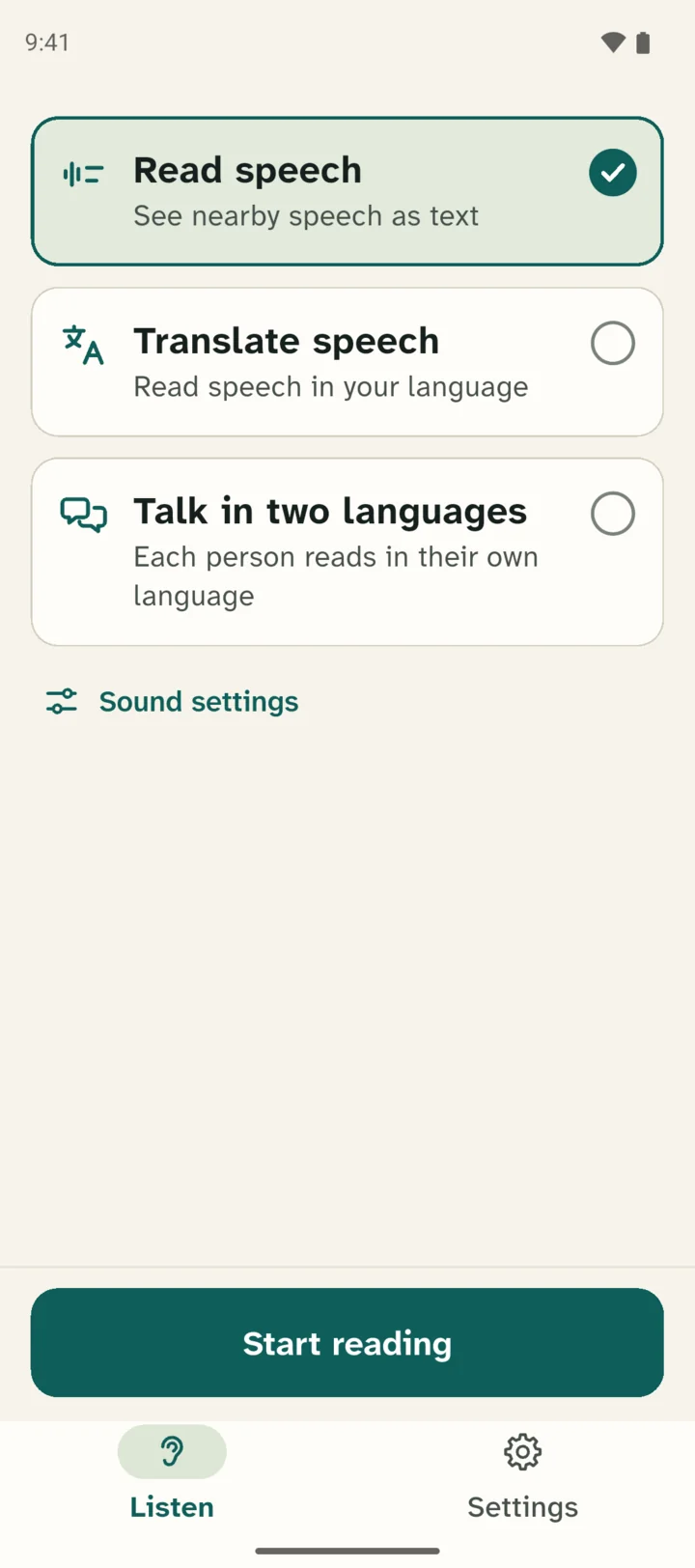
Go to Settings
Open the Leo Speak app. At the bottom of the screen you see two buttons. Tap Settings, the button with the gear.
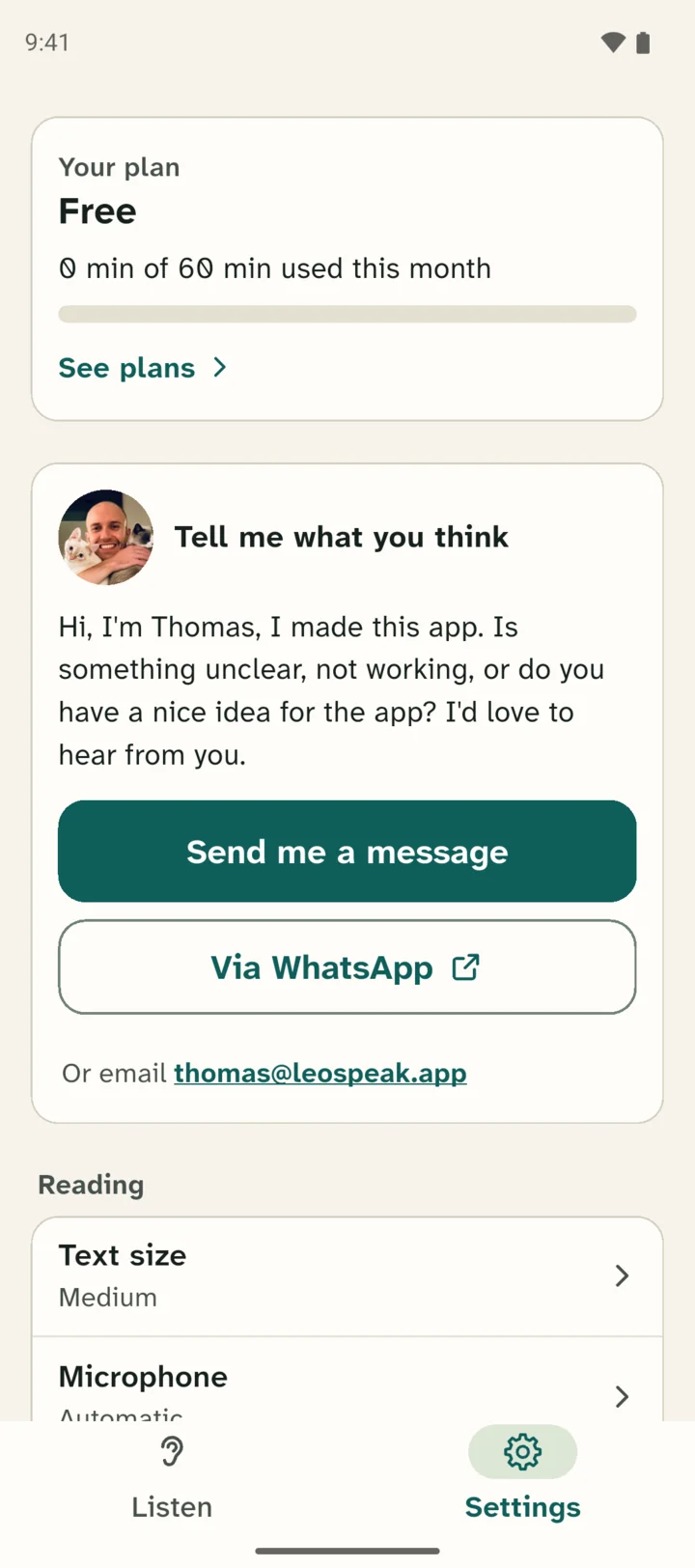
Tap Your plan
At the top there is a box with the words Your plan. Tap that box, for example on See plans.
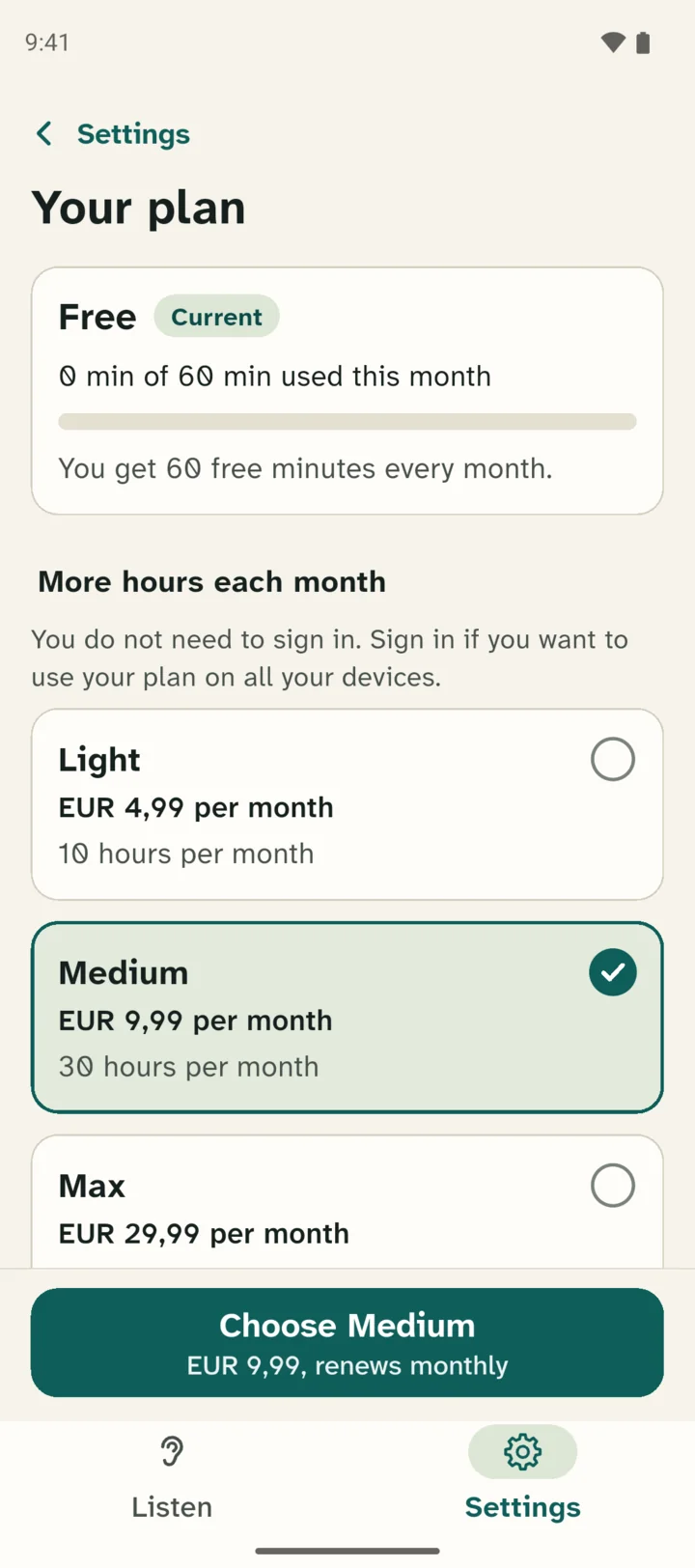
Pick a plan
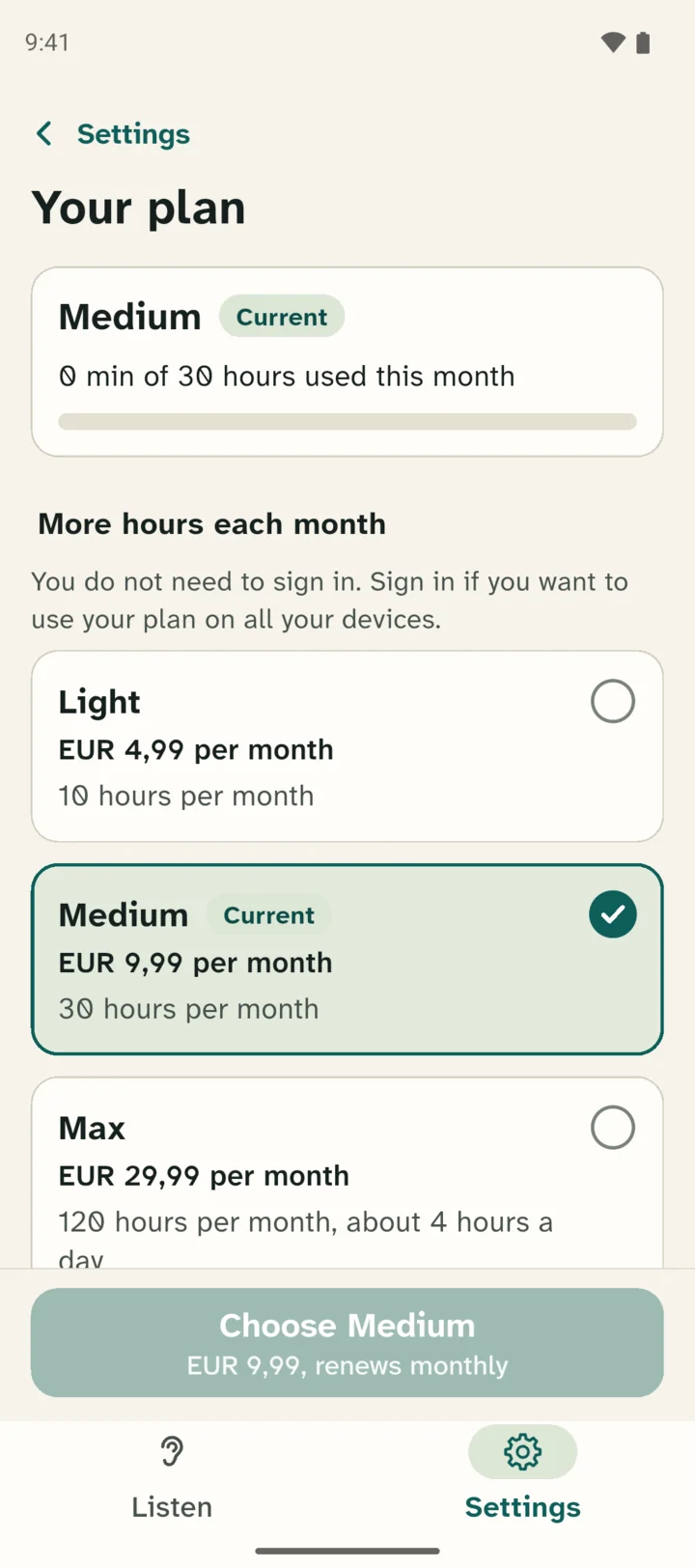
At the top you see your current plan. Below it, under More hours each month, are the plans Light, Medium, Max, Double Max and Unlimited. Scroll down to see them all. Each one shows how many hours you get per month and what it costs. Tap the plan you want. A check mark appears next to it.
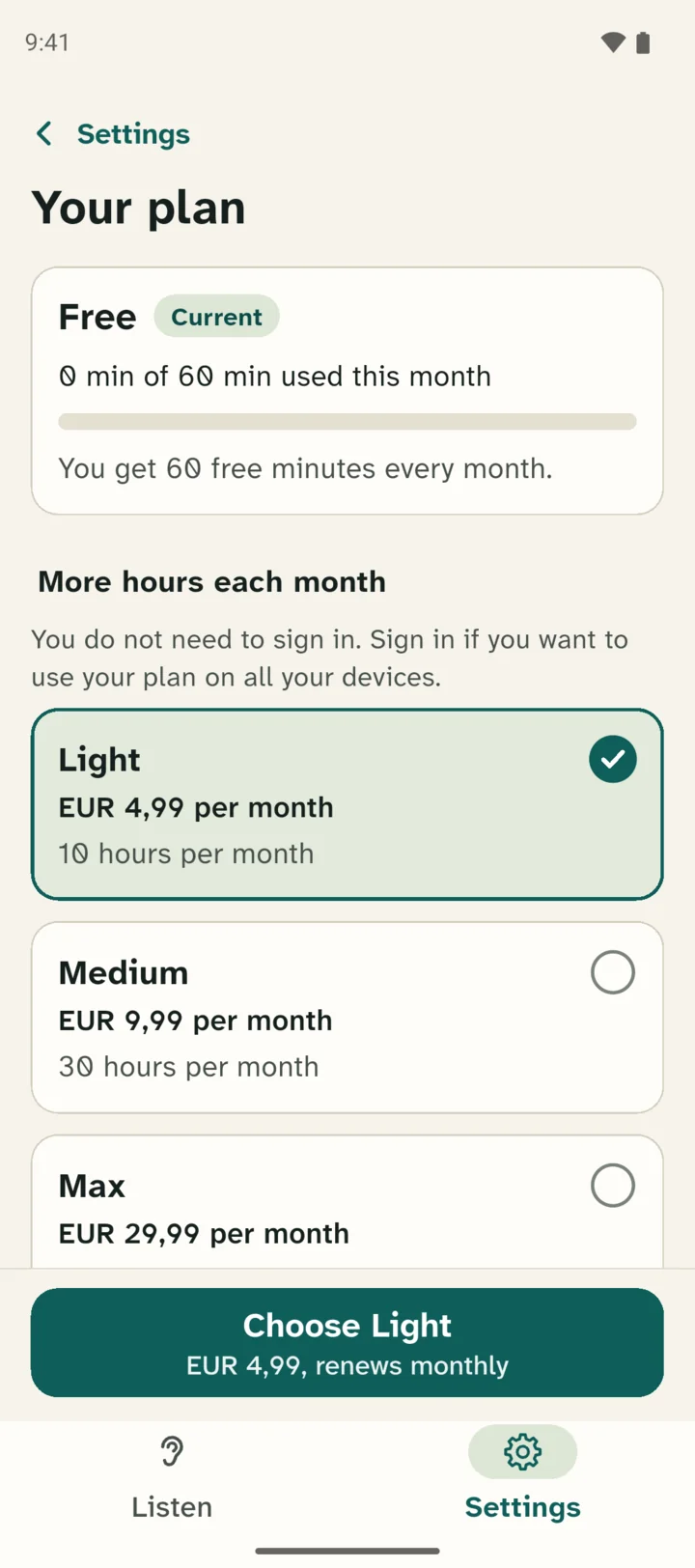
Tap the green button
At the bottom there is a green button with the name of your choice, for example Choose Medium. Tap that button.
Confirm in Google Play
Google Play opens. It shows the plan and the price per month. Does Google Play ask for a payment method? Then choose a card, PayPal or a Google Play gift card. Then tap the button to confirm.
The plan renews every month. Cancel any time in Google Play.
Done
Back in Leo Speak it says: "Done! Your plan is active." On the Your plan page your new plan now says Current.
Using it on more devices? Sign in
You do not need to sign in to get a plan. Sign in if you also want to use your plan on another device, such as a tablet or a computer.
In the app, go to Settings. Under Account, tap Sign in.
How to sign in
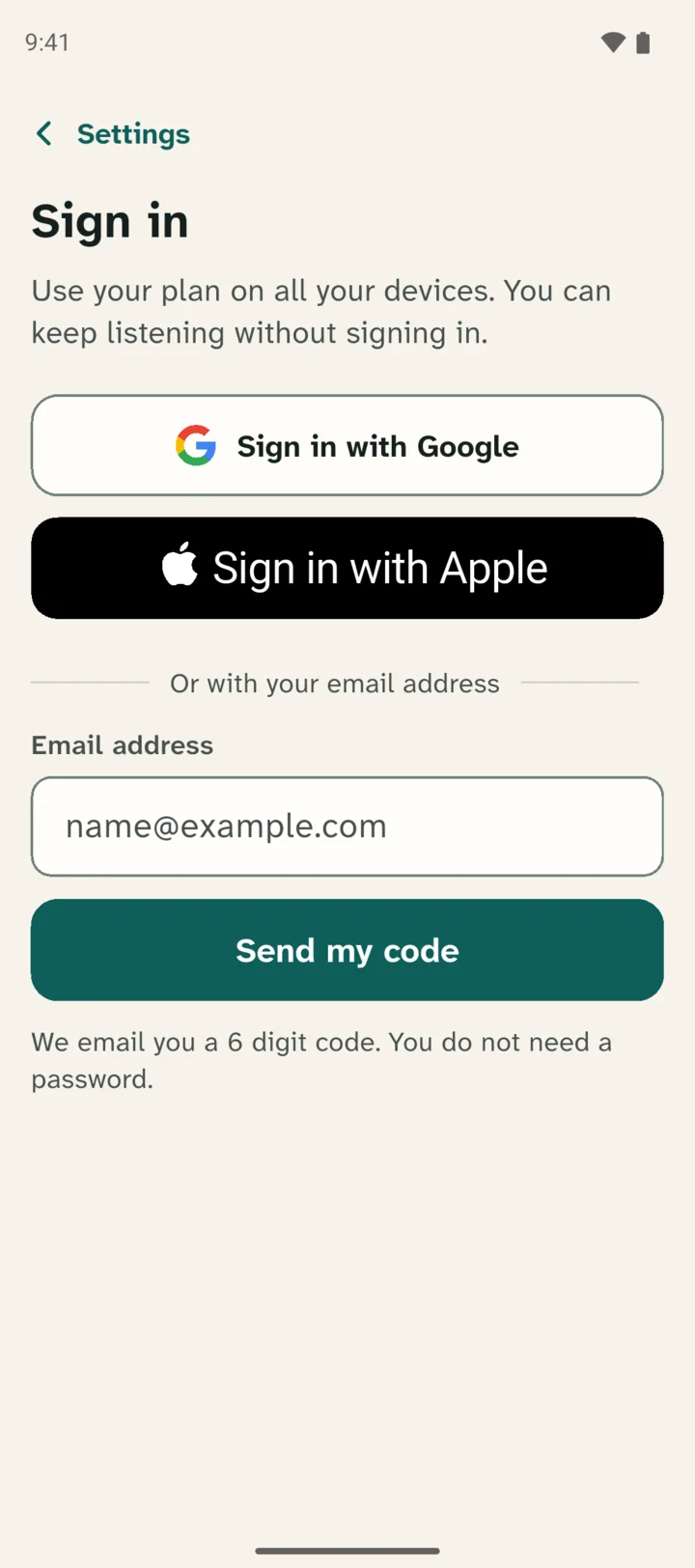
Sign in with Google
This is usually the easiest. Your Android phone already has a Google account. Tap Sign in with Google and choose your account. Often one tap is enough.
Sign in with Apple
Do you have an Apple account, for example because you also have an iPad? Then you can use it. Tap Sign in with Apple and sign in with your Apple account.
With your email address
This works with any email address. You do not need a password.
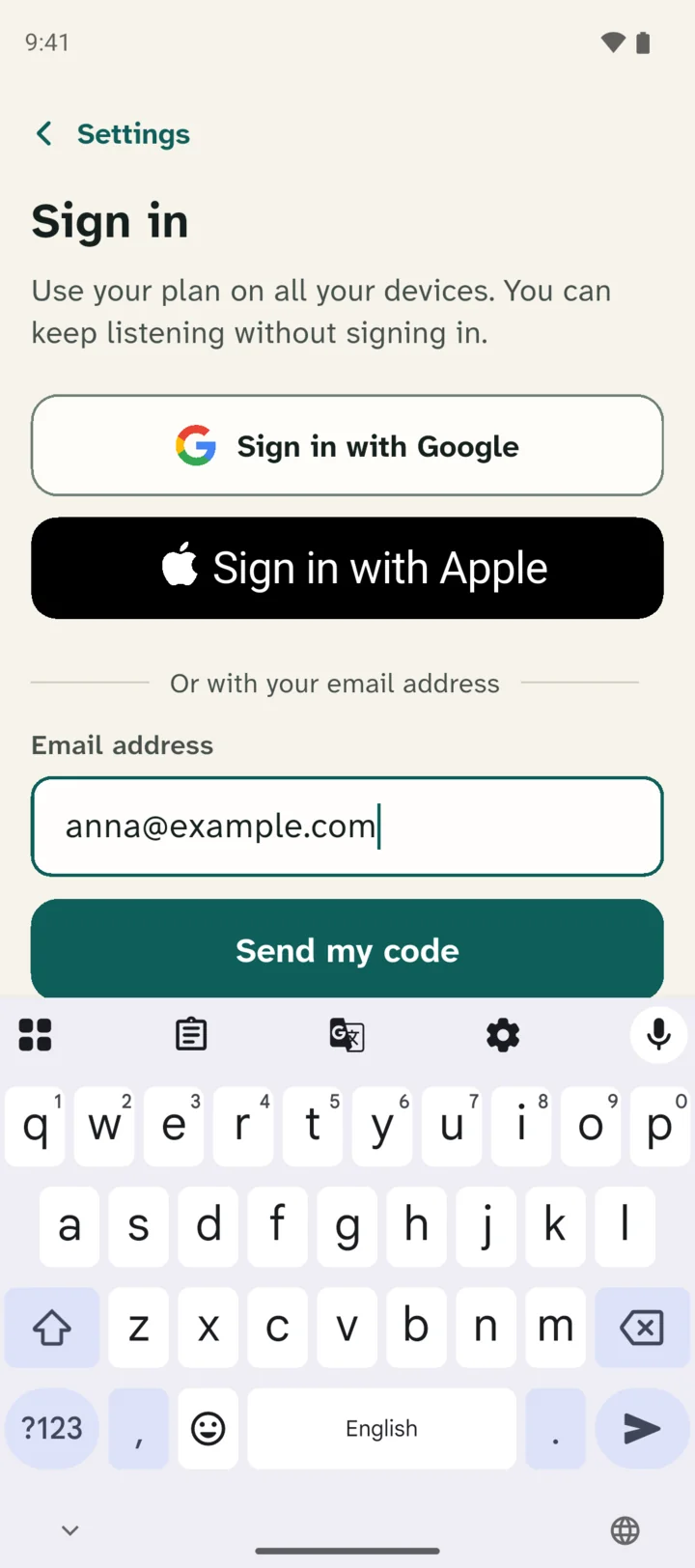
- Type your email address in the box under Or with your email address.
- Tap Send my code.
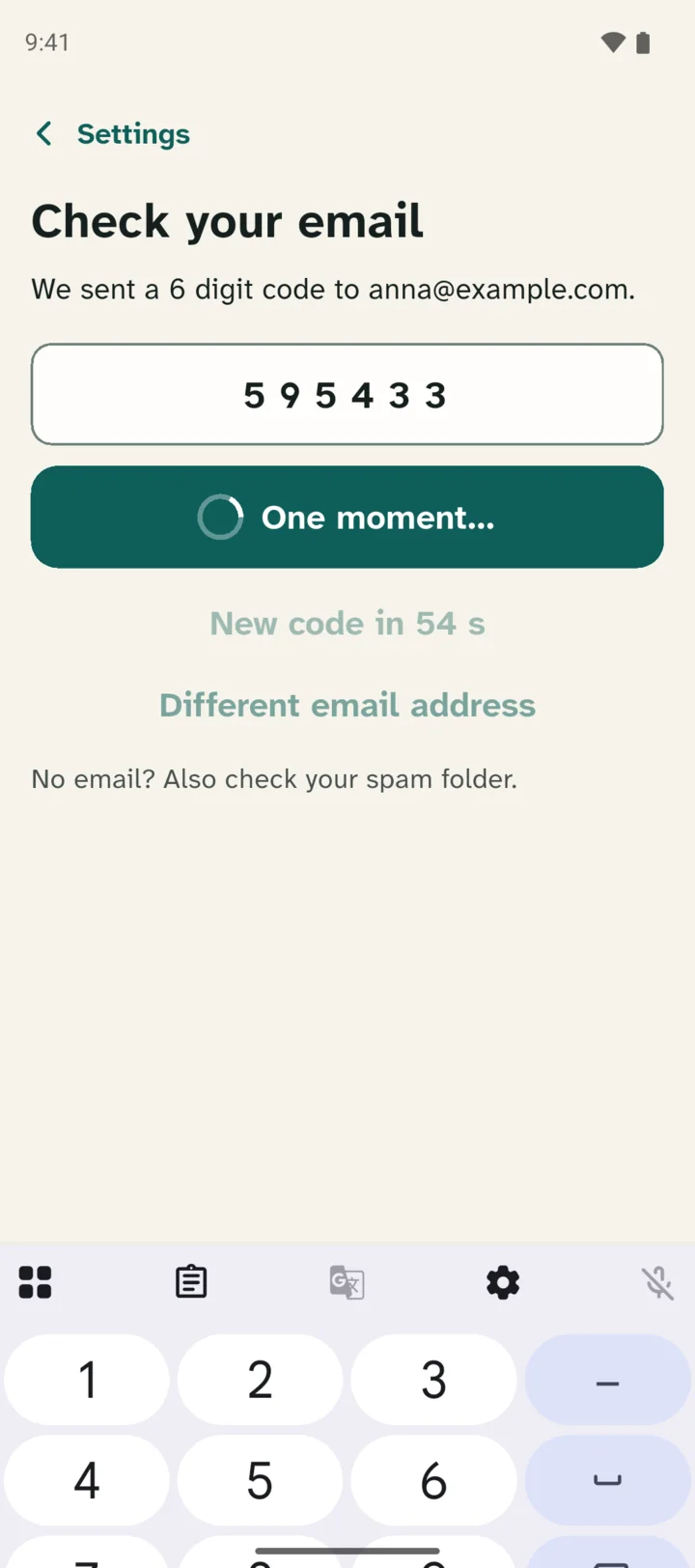
- Open your email. You get an email with a 6 digit code.
- Go back to Leo Speak. You see the Check your email screen. Type the 6 digits there. After the last digit the app signs you in by itself. If it does not, tap Sign in.
No email? Also check your spam folder. Still nothing? Then tap Send a new code.
Not working?
The app says: "Purchase cancelled."
You bought nothing and paid nothing. Still want a plan? Then start again at step 3.
The app says: "The purchase did not go through. Try again later."
Check your payment method in Google Play. Then try again.
Get a plan on an iPhone
Do you have an Android phone? Go to the steps for Android.
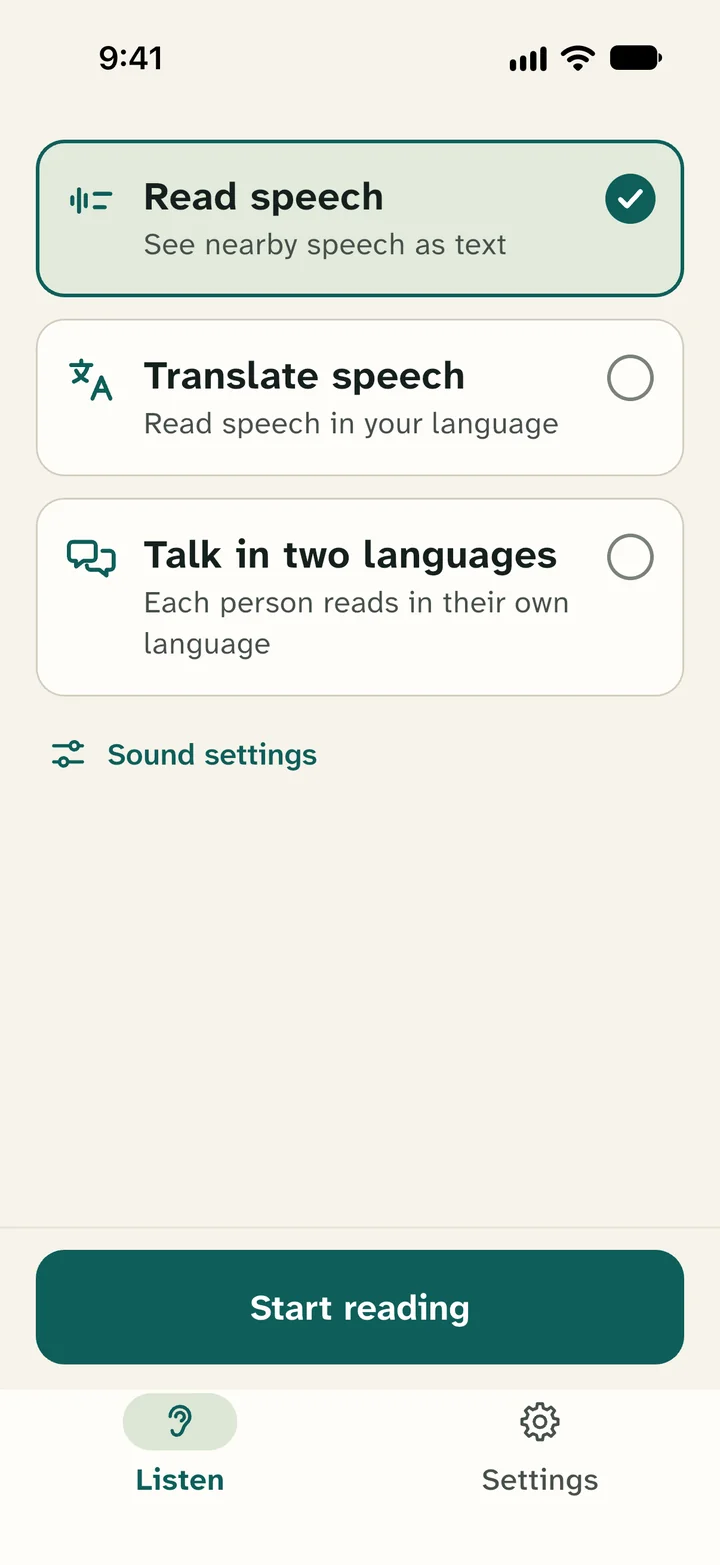
Go to Settings
Open the Leo Speak app. At the bottom of the screen you see two buttons. Tap Settings, the button with the gear.
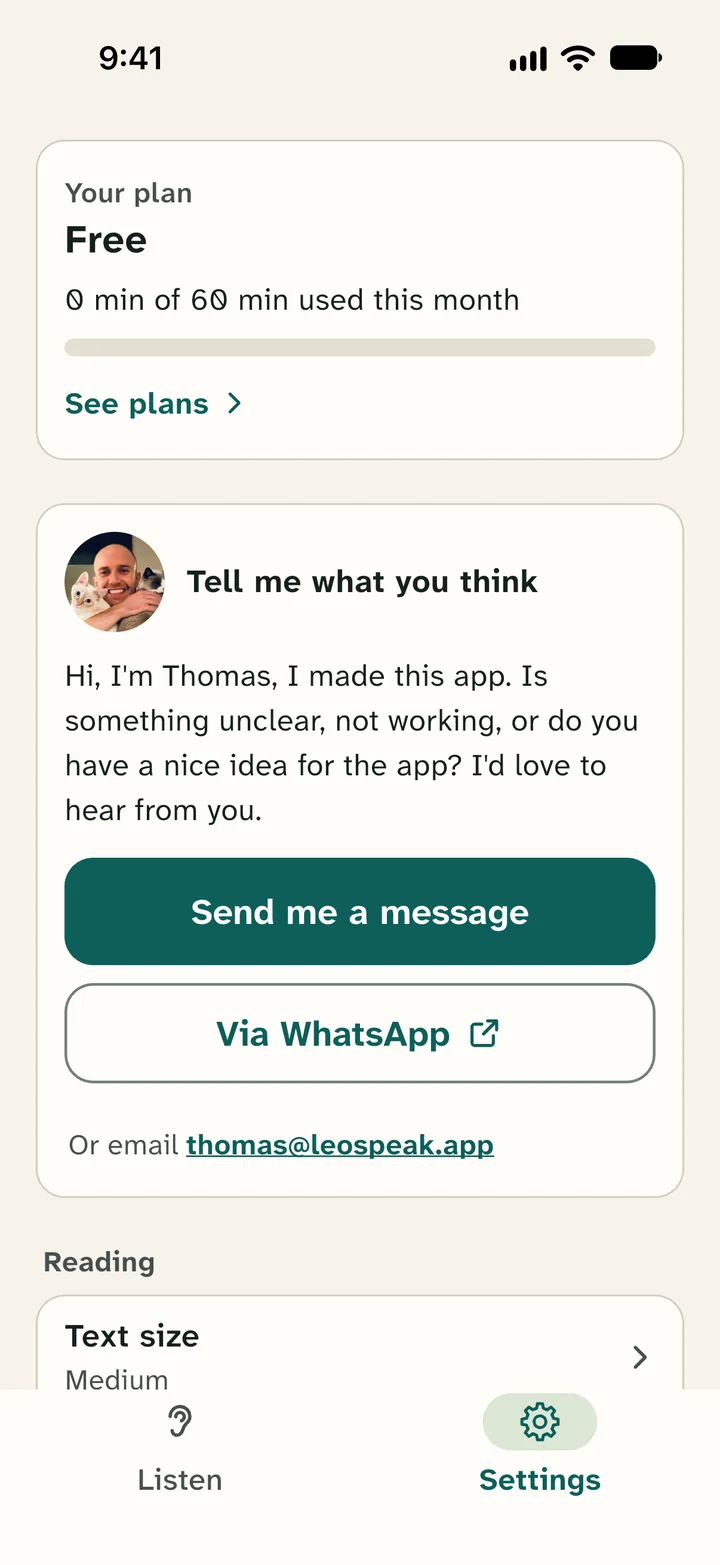
Tap Your plan
At the top there is a box with the words Your plan. Tap that box, for example on See plans.
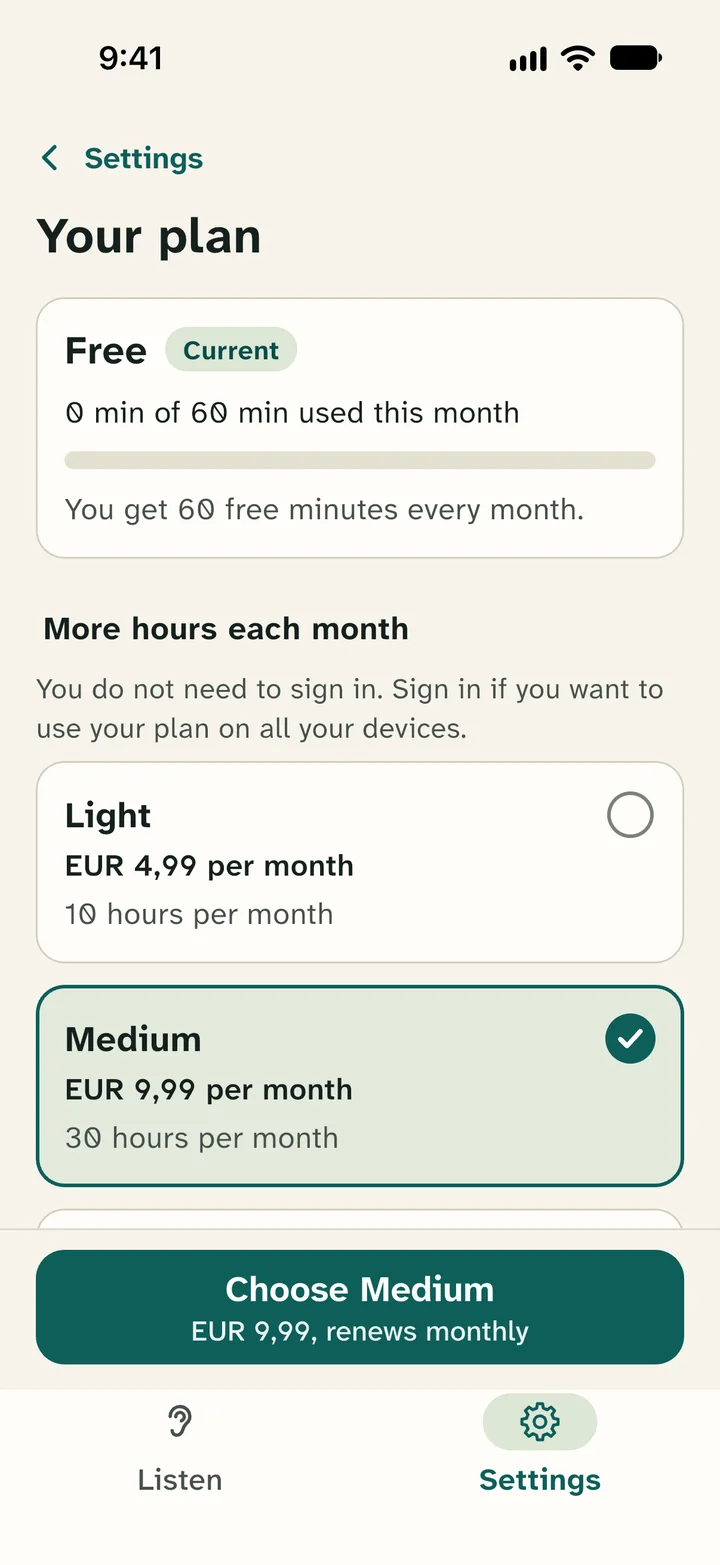
Pick a plan
At the top you see your current plan. Below it, under More hours each month, are the plans Light, Medium, Max, Double Max and Unlimited. Scroll down to see them all. Each one shows how many hours you get per month and what it costs. Tap the plan you want. A check mark appears next to it.
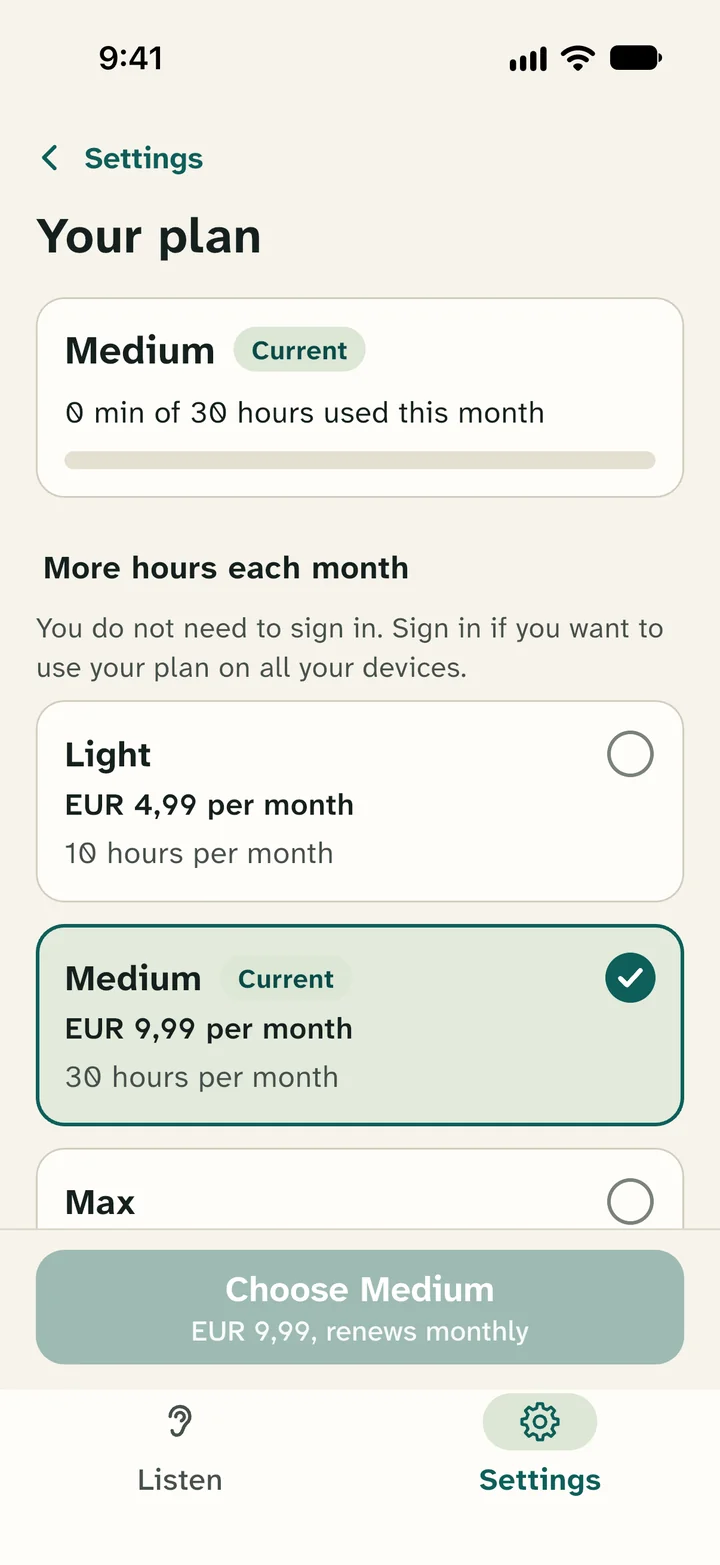
Tap the green button
At the bottom there is a green button with the name of your choice, for example Choose Medium. Tap that button.
Confirm with Apple
An Apple screen opens. It shows the plan and the price per month. Confirm with Face ID, Touch ID or the password of your Apple account. With Face ID you first press the side button twice, quickly.
The plan renews every month. Cancel any time in the App Store.
Done
Back in Leo Speak it says: "Done! Your plan is active." On the Your plan page your new plan now says Current.
Using it on more devices? Sign in
You do not need to sign in to get a plan. Sign in if you also want to use your plan on another device, such as a tablet or a computer.
In the app, go to Settings. Under Account, tap Sign in.
How to sign in
Sign in with Apple
This is usually the easiest on an iPhone. Tap Sign in with Apple and confirm with Face ID, Touch ID or your passcode.
Sign in with Google
Do you have a Google account, for example for Gmail? Tap Sign in with Google and sign in with your Google account.
With your email address
This works with any email address. You do not need a password.
- Type your email address in the box under Or with your email address.
- Tap Send my code.
- Open your email. You get an email with a 6 digit code.
- Go back to Leo Speak. You see the Check your email screen. Type the 6 digits there. After the last digit the app signs you in by itself. If it does not, tap Sign in.
No email? Also check your spam folder. Still nothing? Then tap Send a new code.
Not working?
The app says: "Purchase cancelled."
You bought nothing and paid nothing. Still want a plan? Then start again at step 3.
The app says: "The purchase did not go through. Try again later."
Check your payment details at Apple. You find them in the Settings app: tap your name at the top. Then try again.
Cancel your plan
You can cancel any time. You keep your plan until the end of the month you already paid for. When your plan ends, the hours you saved are gone.
In Leo Speak: go to Settings and tap Your plan. Then tap Manage subscription. Google Play or the App Store opens, and you cancel there.
On an Android phone you can also do it in the Google Play app. Tap your picture at the top right, choose Payments & subscriptions and then Subscriptions.
On an iPhone you can also do it in the Settings app. Tap your name at the top, then Subscriptions.
Questions?
Feel free to email me at thomas@leospeak.app and I will help you.
You can also send me a message from the app. Tap Settings and then Send me a message.
Thomas, maker of Leo Speak